
ImageJ
ImageJ is used for image manipulation and has some useful graphical tools for the initial analysis of images.
It is useful for preparing images for indexing using CLIP.
It is freely available to download at https://imagej.net/downloads
ImageJ is available from a VISA instance. It can be installed by following the menu chain:
Applications : Accessories
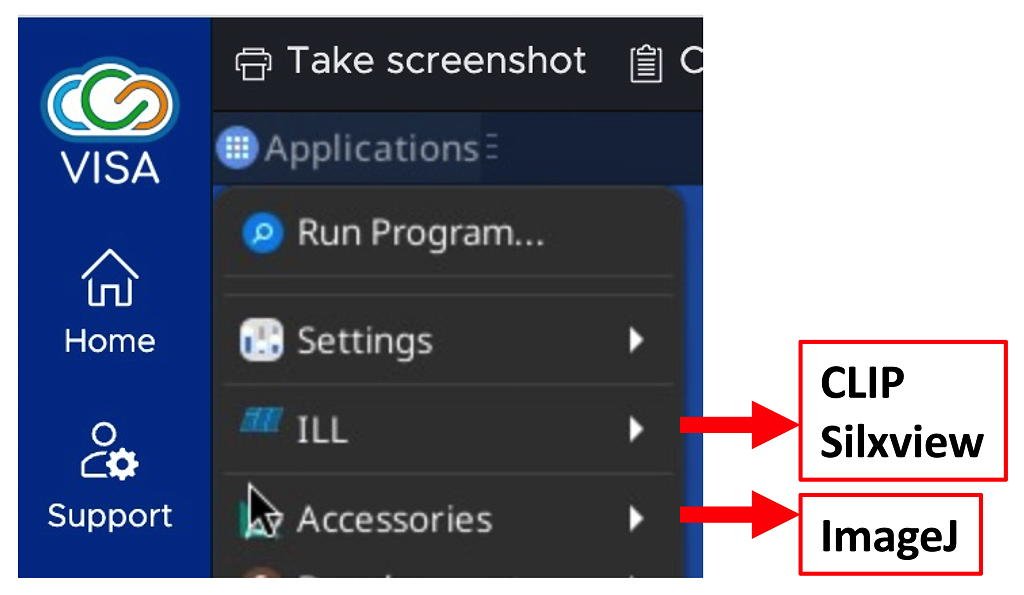
Three windows will open on installation. Only the ImageJ menu window is necessary - the other two can be closed.

NOMAD saves TIFF images that can be treated using ImageJ.
The data can be loaded from the File : Open menu chain.
The data path for the images is:
/home/<username>/MyData/byInstrument/orient/exp_<proposal>_<cycle>_orient/processed
where:
- <username> is your ILL Club user name
- <proposal> is the proposal number
- <cycle> is the reactor cycle (three-digit number with <year><cycle number>, e.g. 261 is the first cycle of 2026).
The NOMAD detector uses CCD cameras.
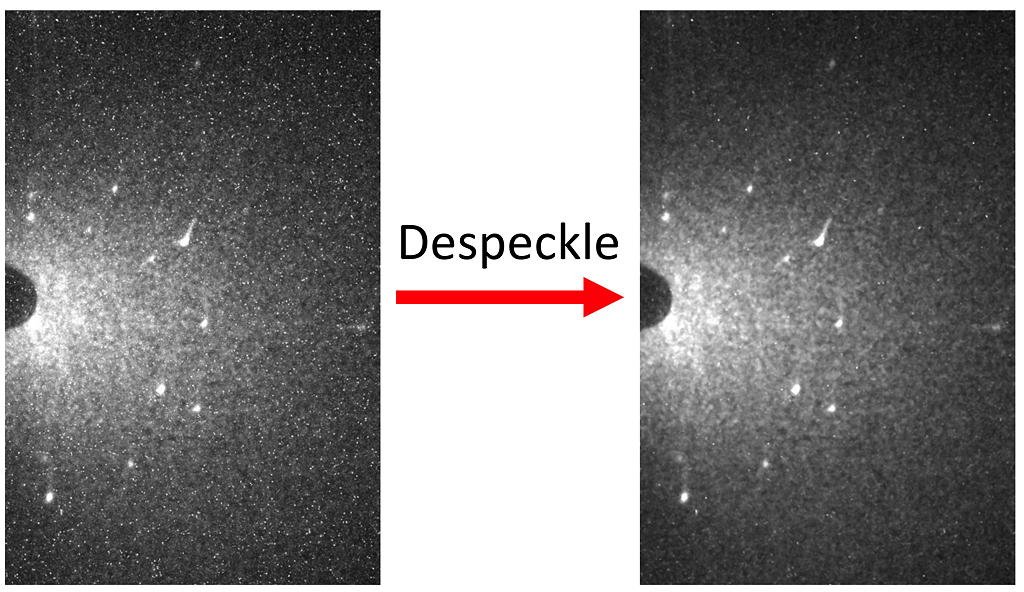
Some of the pixels will be 'hot', with significantly higher counts than their immediate neighbours. This is an unfortunate consequence of working in a high-radiation environment.
The image can be cleaned by 'despeckling', which will remove these 'hot' pixels. This is particularly useful when working with weak-scattering samples, where the signal-to-noise is small.
Despeckle an image by following the ImageJ menu chain:
Process : Noise : Despeckle
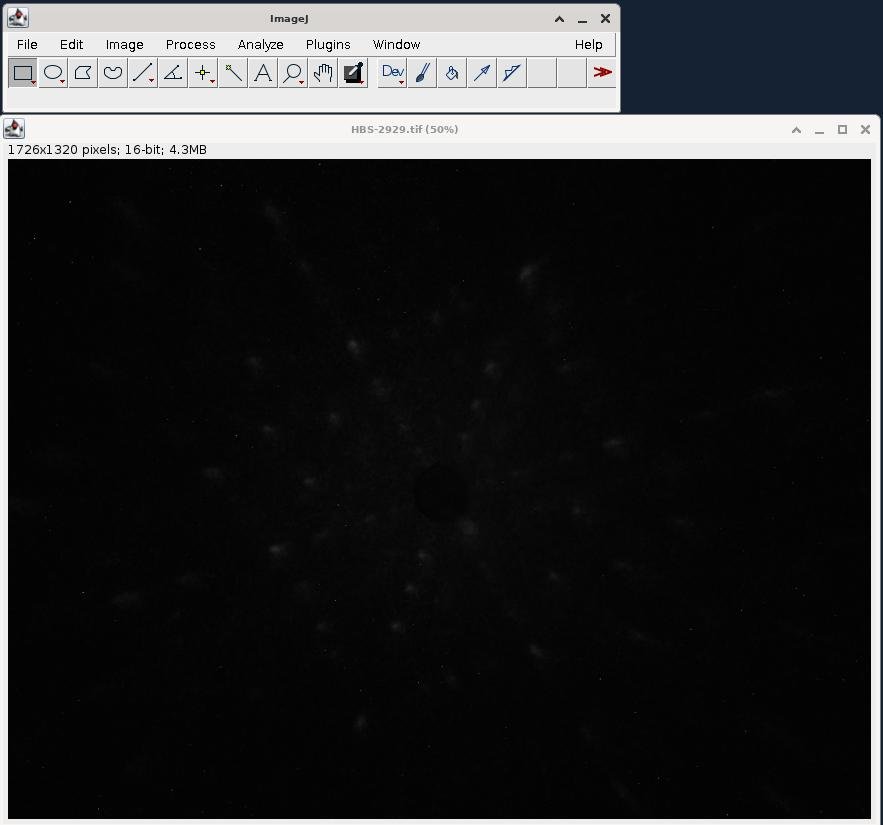
A freshly-loaded image is highly likely to appear to be entirely black. It will need an adjustment of the brightness, and possibly contrast.
After despeckling the image, the brightness and contrast controls can be accessed from the ImageJ menu chain:
Image : Adjust : Brightness/Contrast
This will open a new window.
Adjust the brightness and contrast to have a satisfactory image. Usually, the Auto button does the trick.
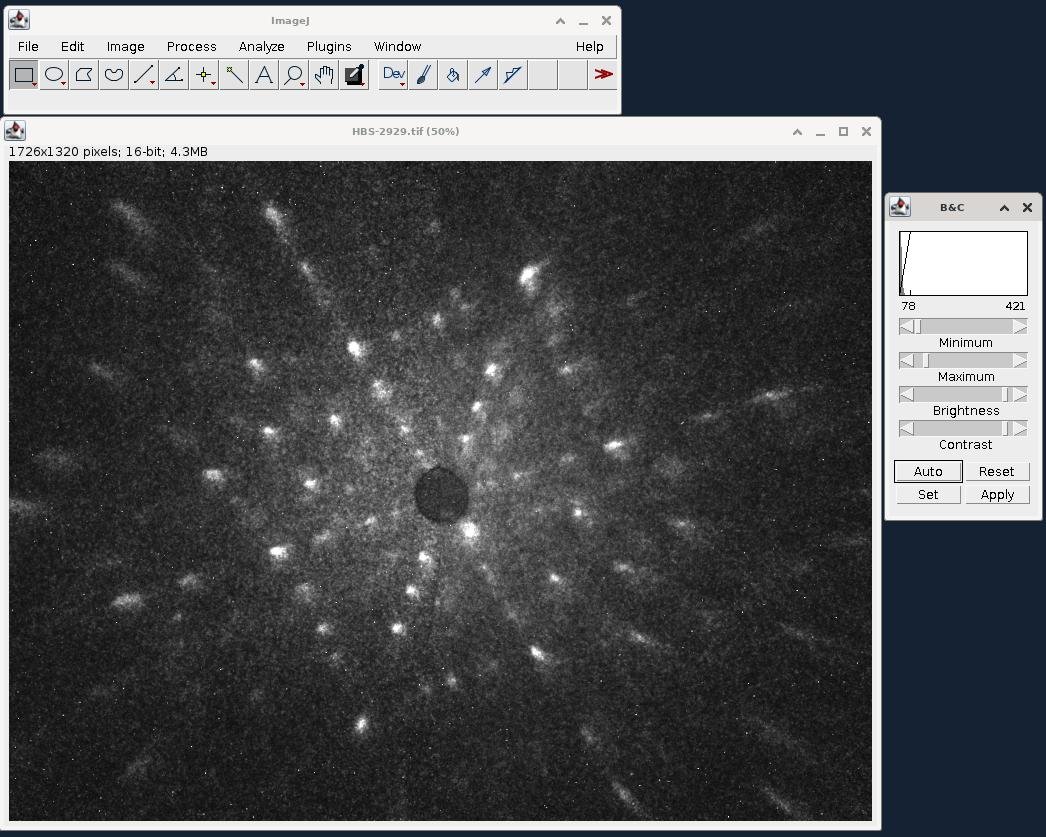
Once you're happy with the image, click the Apply button. You will be prompted with a warning window - click OK.
From the ImageJ menu, choose
File : Save As...
While CLIP can load TIFF files, it is a good idea to keep the original file and save in a new format. Select .png or .bmp as the output format, and save your modified image into the processed directory.
The data are now ready to be indexed.