
Example 3
Magnetic Small-Angle Scattering
e.g. D11: Badurek 5-32-620 - Domain size of Magnetically Saturated Soft Ferromagnetic Ribbons


Aims
- SANS measurements of saturated 'soft' ferromagnetic materials
- Separation of Nuclear and Magnetic scattering components
- Angular analysis around the asymmetric scattering pattern
- Automated 'Ancos2' cosine2 fitting around the detector as a function of |q|
Experiment Overview
- Instrument: D11 (2000)
- Detector distances of: 2m & 8m
- Collimation distances of: 4m & 8m
- Wavelength: 6 Å
- Sample placed in saturating magnetic field (1.5 T electromagnet)
Scattering Measurements
| Scattering | Sample | Empty Sample Holder |
|---|---|---|
2 m |
# 18152 |
# 18151 |
8 m |
# 18180 |
# 18179 |
Transmission & Beam Intensity Measurements
| Transmission | Sample | Empty Sample Holder | Direct Beam |
|---|---|---|---|
2 m |
# 18166 |
# 18165 |
# 18165 |
8 m |
- |
- |
# 18145 |
Download Example 3
Option 1
Grasp Project with all data worksheets filled and derived beam centres and transmission values calculated as described above (needs unzipping first).
ex3_project.zip
Option 2
A 'zip' of all the individual data files described above. Download and unzip the raw data ready to load into Grasp.
ex3_data.zip
Data Reduction and Analysis Overview
Filling the data worksheets:
- Launch Grasp. Switch to the D11 64ASCII instrument configuration in the menu: Instrument > ILL > D11_64ASCII.
- Set the data directory where the raw data can be found: File > Set Data Directory or File > Set File & Data Directory (choose any file, it doesn't matter).
- Load the sample scattering data into the Worksheets. Let's put the 2 m scattering data into worksheet 'Sample 1' and the 8 m scattering data into 'Sample 2'.
- In the Worksheet Selector, make sure that 'Sample' and number '1' is selected in the Foreground & Data Load selector.
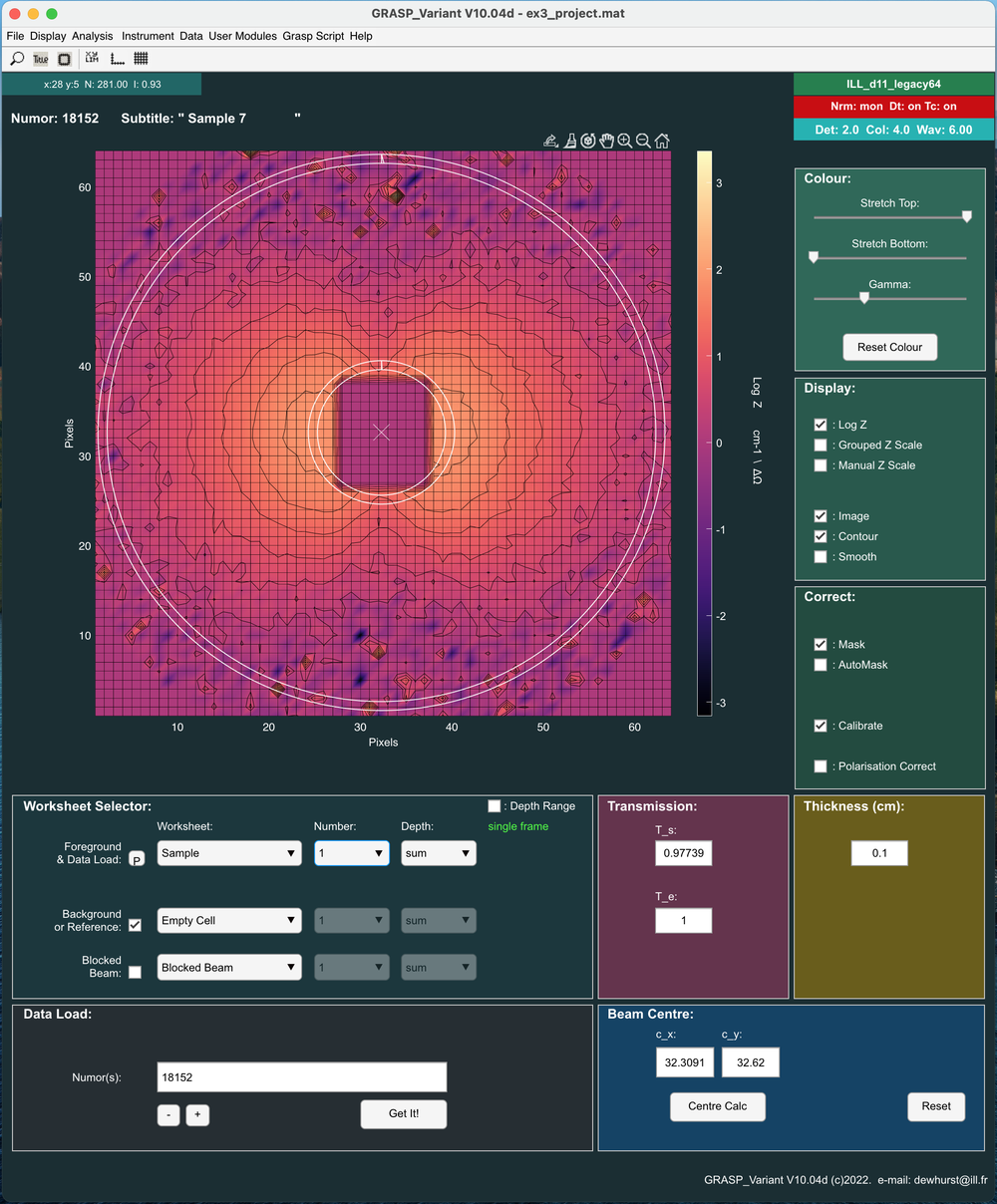
- Enter the run number(s) into the 'Data Load, Numors' box and click the 'Get It' button: e.g. '18152'. This loads all of the sample scattering data measured at a distance of 2 m into Worksheet Sample 1: Depth 1.
- Select 'Sample 2' from the worksheet selector and load the 8 m sample scattering data into Worksheet Sample 2: Depth 1. e.g. '18180'.
- Note: Hold the mouse hovering over the 'Data Load, Numors' box for tips on more data loading options.
- Load the empty sample holder (background scattering) data into the Worksheet 'Empty Cell 1'.
- Select 'Empty Cell' and number '1' in the 'Foreground & Data' Load selector.
- Enter the run numbers(s) into the 'Data Load, Numors' box and click the 'Get It' button: e.g. '18151'. This the empty sample holder scattering data measured at a distance of 2 m into Worksheet Empty Cell 1: Depth 1.
- Select 'Empty Cell 2' from the worksheet selector and load the 8 m background scattering data into Worksheet Empty Cell 2: Depth 1. e.g. '18179'.
- Repeating the procedure above to load:
- Sample Transmission into 'Trans Sample 1' and 'Trans Sample 2': e.g. '18166'. Here we will use the same sample transmission data measured at 2 m for both the 2 m and 8 m scattering data.
- Empty Sample Holder Transmission into 'Trans Empty Cell 1' and 'Trans Empty Cell 2': e.g. '18165'.
- Note: In this case the Empty Sample Holder data would be equivalent to an Empty Beam measurement as the Empty Sample Holder has no 'container' and is simply an air path. This means therefore that the Transmission of the Empty Cell, Te = 1 (see below).
- Load the 2 m Empty Beam Transmission into 'Trans Empty Beam 1': e.g. '18165' and the 8 m Empty Beam Transmission into 'Trans Empty Beam 2': e.g. '18145'
- All data is now loaded into Grasp to allow data full correction and data treatment to absolute scattering units.

Masking data: Beam stop, shadows, bad detector elements:
In this example it is not strictly necessary to mask out 'bad' regions of the detector(s). This is because the Ancos2 analysis tool we are going to use below already only operates on well defined 'rings' of data around the detector and not the entire data set.
For cosmetic purposes though or if other data analysis procedures are going to be applied, e.g. I vs. |q| (Over vertical and horizontal sectors) you may wish to mask out any unattractive that should be eliminated from any data analysis. In which case:
- Open the 'Mask Editor' window from the 'Analysis > Mask Editor' menu (shortcut CTRL-N [Windows/Linux], CMD-N [Mac]).
- Using the various 2D display options (e.g. Log I), make visible the areas of the detector data requiring masking.
- The mask editor operates on the Current Active Axis (Detector), indicated by a white border around the 2D display. A left-click on a particular detector panel makes that panel the Current Active Axis.
- Mask out unwanted regions of the detector for each Sample worksheet number using the various tools to define: Individual pixels, Lines, Box regions, Circles or Edge regions of the detector.
- One of the most useful masking options is the 'Sketch' option. Click the 'Sketch' button followed by a held left-click drawing over the region of the 2D data requiring masking

Calculate the Sample Transmission
- Toggle the 'Foreground & Data Load' selector to display the 'Trans Sample 1' worksheet
- The 'Trans Empty Cell 1' worksheet will be offered automatically in the 'Background or Reference' selector.
- Use the 2D plot inspector tools (top right of the 2D display) to select Zoom and Zoom in around the transmitted beam intensity.
- Click the Trans Calc' button to calculate the sample transmission, Ts. This is the transmission of the sample relative to that of the empty sample holder.
- Repeat the above procedure for the 'Trans Sample 2' worksheet
- This is exacly the same data and should calculate exactly the same sample transmission, Ts, as calculated for Sample 1.
- Alternatively, instead of loading the same transmission data into worksheet 2 we could simply copy and paste the transmission value from Sample 1 into the Sample 2 Ts value.
- Leave the Empty Cell transmission value, Te = 1.
- This is because the Empty Sample Holder Transmission and the Empty Beam Transmission are the same thing for this particular example.

Calculate Beam Centres
- Toggle the 'Foreground & Data Load' selector to display the 'Trans Empty Beam 1' worksheet
- Stored here is the direct beam measurement for the 2 m data.
- Click 'Centre Calc'. Grasp will calculate a beam centre this instrument configuration.
- Note: The Trans Empty Beam data will also be used as a measure of the incoming flux for the calibration of the scattering data to absolute units. Grasp will use an auto scaling of the data by the attenuation facture used for the direct beam measurements.
- Repeat calculation of the beam centre for the 8 m data stored in the 'Trans Empty Beam 2' worksheet

Apply the Background and Transmission corrections
- Toggle the 'Foreground & Data Load' selector back to display the sample scattering worksheet 'Sample 1'
- Click the check boxes to the left of the Background and Blocked Beam worksheet selectors to enable subtraction of these background components in the correct ratio of the transmissions calculated.
Apply the Calibration to Absolute units
- Check the sample thickness in the 'Thickness' panel. Ideally this should have been picked up from the data file (not all instruments). The default value is 1 mm.
- Click the 'Calibrate' checkbox in the 'Correct:' panel - this opens the Calibration options window.
- Choose the 'Beam' radio button to calibrate to the measured direct beam intensity.
- Select 'Trans Empty Beam' in the dropdown menu to tell Grasp to use the direct beam data in this worksheet to scale the data.
- By default all other data scaling options should be On. These are:
- 'Divide by Detector Efficiency Map'. The instrument responsibles should have provided Grasp with a detector efficiency map. This doesn't have a significant effect on modern multi-tube detectors.
- 'Correct Relative Detector Efficiency'. Any differences in average efficiency between different detector banks are taken into account here.
- 'Correct Detector Tube Parallax'. This is an important correction taking into account the self shadowing or projected area of detector tubes as a function of angle. This is a detailed (and complicated) correction that should have been worked out by the instrument responsibles and included in Grasp.
- 'Divide by Sample Volume'. (Uses the sample thickness indicated in the main display).
- 'Divide by Pixel Solid Angle'. An important geometric correction accounting for flat-panel detectors.
- 'Divide by Beam Flux'. Enables the direct beam scaling as described above.

View and Inspect Fully Corrected 2D Sample Scattering Data
- Return to the main Grasp interface to find fully corrected data scaled in absolute scattering units.
- Use the worksheet 'Number' selector to toggle between 2D data measured at 2 m and 8 m.
- Use the various Display and Analysis tools to:
- Modify the 2D visual display: e.g. Colour scheme, Contour, Smoothing, Log intensity scale, (un)Grouped intensity scale between panels, Manual intensity scale etc.
- Analysis tools allow defining various regions of the detector to be considered for analysis / reduction: e.g. Sectors, Boxes, Strips etc.
- Below we will use the dedicated Ancos2 tool to analyse the cosine2 depency of magnetic scattering around the detector.
- The observed scattering patterns are beautifully asymmetric showing the typical 'butterfly' pattern observed for a saturated ferromagnetic material.
- In this experiment a saturating magnetic field (~ 1.5 T) was applied in the vertical direction.
- For a 'perfectly' saturated ferromagnet this means that:
- There should only be nuclear scattering and NO magnetic scattering in the direction parallel to the applied magnetic field (vertical).
- There should be BOTH nuclear and magnetic scattering in the direction perpendicular to the applied magnetic field (horizontal).
- This gives rise to a cosine2 dependency of the magnetic scattering contribution as a function of azimuthal angle around the detector.


Data Reduction: Ancos2: I vs |q| with separation of nuclear (isotropic) and magnetic (anisotropic) scattering
- Toggle the 'Foreground & Data Load' selector to display the 'Sample 1' worksheet
- Open the 'Ancos2: Anisotropic Azimuthal Averaging' window from the 'Analysis > Ancos2: Anisotropic Azimuthal Averaging' menu (shortcut CTRL-T [Windows/Linux], CMD-T [Mac]).
- Select the Ancos2 parameters:
- Start and End radii (pixels) for the analysis. Width and Step of each azimuthal ring on the detector (pixels).
- Note: A larger Width introduces more pixel data into each azimuthally averaged ring and therefore better statistics but lower q-resolution of the final data.
- A larger Width compared to the Step effectively introduces a smoothing into the final data.
- Select the checkboxes to display the final Cosine2: Offset (nuclear scattering - isotropic), Amplitude (magnetic scattering - anisotropic) and Phase (orientation of the anisotropy).
- Click the 'Ancos2-It!' button to run the automated procedure that:
- Extracts I vs. Azimuthal angle for each ring at a given radius on the detector.
- Makes a fit of the function: I = Offset + Amplitude * Cos2(Azimuthal Angle + Phase).
- Collects the |q| and fitted Offset, Amplitude and Phase values for each ring on the detector and moves to the next.
- When the range of radii has been complete the Offset, Amplitude and Phase values are plotted as a function of |q|.
- Start and End radii (pixels) for the analysis. Width and Step of each azimuthal ring on the detector (pixels).
- Toggle the 'Foreground & Data Load' selector to display the 'Sample 2' worksheet and repeat the above procedure.


Acknowledgement
Many thanks to Gerald Badurek for allowing this data to be used as Grasp example data.
Last Modified 2 August 2024 by C. Dewhurst
Example 4: Powder Scattering @ FRM2
e.g. SANS-1 FRM2


Aims
- Combination of measurements at two wavelengths and three detector distances
- Absolute calibration of scattered intensity - Normalisation to direct beam
- 2D inspection of data
- 1D I vs Q scattering curve
- 1D curve fitting/Porod
Experiment Overview
- Instrument SANS-1 (2017)
- Sample: hard carbon powder, porous carbon powder (sample thickness = 1 mm)
- Sample references: B4C, Direct Beam, Water, Empty Cell
- Detector distances of: 1.1 m with 4.5 Å wavelength
- Detector distances of: 4 m and 20 m with 6 Å wavelength
- Time (scattering): 300s at 1.1 m. 1200s at 4 m, 3600s at 20 m
- Time (transmission): 120 s
- Collimation distances of: 4 m, 4 m, and 20 m
Scattering Measurements
| Scattering | Sample HC | Sample PC | Empty Cell | Blocked Beam | Direct Beam | Water |
|---|---|---|---|---|---|---|
1.1 m, 4.5 Å |
# 497819 |
# 497822 |
# 497824 |
# 497827 |
# 497820 |
# |
4 m, 6 Å |
# 497839 |
# 497842 |
# 497844 |
# 497847 |
# 497840 |
# 497846 |
20 m, 6 Å |
# 497897 |
# 497900 |
# 497902 |
# 497904 |
# 497898 |
# |
Transmission & Beam Intensity Measurements
| Transmission | Sample HC | Sample PC | Empty Cell | Blocked Beam | Direct Beam | Water |
|---|---|---|---|---|---|---|
1.1 m, 4.5 Å |
- |
- |
- |
- |
# 497589 |
- |
4 m, 6 Å |
- |
- |
- |
- |
# 497853 |
- |
20 m, 6 Å |
# 497859 |
# 497862 |
# 497864 |
# 497867 |
# 497588 |
# 497866 |
20 m, 4.5 Å |
# 497878 |
# 497881 |
# 497883 |
# 497886 |
# 497587 |
# 497885 |
Download: Example 4
Option 1
Grasp Project with all data worksheets filled and derived beam centres and transmission values calculated as described above (needs unzipping first).
ex4_project.zip
Option 2
A 'zip' of all the individual data files described above. Download and unzip the raw data ready to load into Grasp.
ex4_data.zip
Data Reduction and Analysis Overview
Filling the data worksheets:
- Launch Grasp. Switch to the SANS_I instrument configuration in the menu: Instrument > FRM2 > SANS_I.
- Set the data directory where the raw data can be found: File > Set Data Directory or File > Set File & Data Directory (choose any file, it doesn't matter).
- Load the sample scattering data into the Worksheet 'Sample 1'.
- In the Worksheet Selector, make sure that 'Sample' and number '1' is selected in the Foreground & Data Load selector.
- Enter the run number(s) into the 'Data Load, Numors' box and click the 'Get It' button: e.g. '497819, 497839, 497897'. This loads all of the sample scattering data measured at distances of 1.1 m (4.5 Å), 4 m (6 Å) and 20 m (6 Å), into the 'Depth' of Worksheet Sample 1: Depths 1,2,3. Note: The comma between the run numbers indicates that the next file should go into the next depth of the scattering data. Hold the mouse hovering over the 'Data Load, Numors' box for tips on more data loading options.
- Load the empty cell (or cell + buffer) data into the Worksheet 'Empty Cell 1'.
- Select 'Empty Cell' and number '1' in the 'Foreground & Data' Load selector.
- Enter the run numbers(s) into the 'Data Load, Numors' box and click the 'Get It' button: e.g. '497824, 497844, 497902'. This loads all of the empty cell scattering data measured at distances of 1.1 m (4.5 Å), 4 m (6 Å) and 20 m (6 Å), into the 'depth' of Worksheet Empty Cell 1: Depths 1,2,3.
- Repeating the procedure above to load:
- Blocked beam data in to the depth of 'Blocked Beam 1': '497827, 497847, 497904'
- Sample Transmission into 'Trans Sample 1': '497878, 497859'. Note: Depth 1 will be used to calculate the transmission 4.5 Å to be used with sample depth 1 also measured at 4.5 Å while depth 2 will be used to calculate the transmission at 6 Å to be used with sample depths 2 & 3 also measured at 6 Å.
- Empty Cell Transmission into 'Trans Empty 1': '497883, 497864'
- Empty Beam Transmission into 'Trans Empty Beam 1': '497587, 497588'
- Empty Beam intensities for the three instrument configurations into 'I0 Beam Intensity 1': '497589, 497853, 497588'
- All data is now loaded into Grasp to allow data full correction and data treatment to absolute scattering units.

Masking data: Beam stop, shadows, bad detector elements:
It is important to mask out regions of the detector(s) that should be eliminated from any data analysis. Usually this is the region of the scattering measurements covered by the beam stop to protect the detector from exposure to the intense (un-attenuated) direct beam in scattering measurements. Further masking may be necessary to remove areas of the detector that may be shadowed by, for example, other other detector panels or sample environment. Furthermore, occasionally our neutron detectors suffer from pixels, lines or detector tubes that are not functioning correctly and also should be removed. Masking of data can be performed at almost any stage during the procedures described here - It is often a personal choice as to when and can depend on the application of various corrections to properly highlight the areas requiring masking.
- Open the 'Mask Editor' window from the 'Analysis > Mask Editor' menu (shortcut CTRL-N [Windows/Linux], CMD-N [Mac]).
- Using the various 2D display options (e.g. Log I), make visible the areas of the detector data requiring masking.
- Mask out unwanted regions of the detector using the various tools to define: Individual pixels, Lines, Box regions, Circles or Edge regions of the detector.
- One of the most useful masking options is the 'Sketch' option. Click the 'Sketch' button followed by a held left-click drawing over the region of the 2D data requiring masking
- Masks though depth:
- By default, the mask editor operates on and applies to all data in the worksheet Depth.
- If individual masks are required as a function of depth then use the 'Expand though Depth' option. Now the mask editor will operate on the data indicated by the current worksheet Depth.

Calculate Transmissions
- Toggle the 'Foreground & Data Load' selector to display the 'Trans Sample 1' worksheet
- The 'Trans Empty Cell 1' worksheet will be offered automatically in the 'Background or Reference' selector.
- Use the 2D plot inspector tools (top right of the 2D display) to select Zoom and Zoom in around the transmitted beam intensity.
- Click the Trans Calc' button to calculate the sample transmission, Ts. This is the transmission of the sample relative to that of the empty cell (or empty cell + buffer).
- Toggle the 'Foreground & Data Load' selector to display the 'Trans Empty 1' worksheet
- The 'Trans Empty Beam 1' worksheet will be offered automatically in the 'Background or Reference' selector.
- Repeat the above procedure to calculate the Empty Cell (or Cell + Buffer) transmission, Te. This is the transmission of the empty cell (or cell + buffer) relative to that of the empty beam.

Calculate Beam Centres
- Toggle the 'Foreground & Data Load' selector to display the 'I0 Beam Intensity 1' worksheet
- Stored here are the direct beam measurements for the three instrument configurations in the worksheet depth at distances of 1.1 m (4.5 Å), 4 m (6 Å) and 20 m (6 Å).
- Click 'Centre Calc'. Grasp will cycle though the worksheet depth and calculate a beam centre for the three instrument configurations.
- Note: The I0 Beam Intensity data will also be used as a measure of the incoming flux for the calibration of the scattering data to absolute units. Grasp will use an auto scaling of the data by the attenuation facture used for the direct beam measurements.

Apply the Background and Transmission corrections
- Toggle the 'Foreground & Data Load' selector back to display the sample scattering worksheet 'Sample 1'
- Click the check boxes to the left of the Background and Blocked Beam worksheet selectors to enable subtraction of these background components in the correct ratio of the transmissions calculated.
Apply the Calibration to Absolute units
- Check the sample thickness in the 'Thickness' panel. Ideally this should have been picked up from the data file (not all instruments). The default value is 1 mm.
- Click the 'Calibrate' checkbox in the 'Correct:' panel - this opens the Calibration options window.
- Choose the 'Beam' radio button to calibrate to the measured direct beam intensity.
- Select 'I0 Beam Intensity' in the dropdown menu to tell Grasp to use the direct beam data in this worksheet to scale the data.
- By default all other data scaling options should be On. These are:
- 'Divide by Detector Efficiency Map'. The instrument responsibles should have provided Grasp with a detector efficiency map. This doesn't have a significant effect on modern multi-tube detectors.
- 'Correct Relative Detector Efficiency'. Any differences in average efficiency between different detector banks are taken into account here.
- 'Correct Detector Tube Parallax'. This is an important correction taking into account the self-shadowing or projected area of detector tubes as a function of angle. This is a detailed (and complicated) correction that should have been worked out by the instrument responsibles and included in Grasp.
- 'Divide by Sample Volume'. (Uses the sample thickness indicated in the main display).
- 'Divide by Pixel Solid Angle'. An important geometric correction accounting for flat-panel detectors.
- 'Divide by Beam Flux'. Enables the direct beam scaling as described above.

View and Inspect Fully Corrected 2D Sample Scattering Data
- Return to the main Grasp interface to find fully corrected data scaled in absolute scattering units.
- Use the worksheet 'Depth' selector to toggle between 2D data at the three measurement distances.
- Use the various Display and Analysis tools to:
- Modify the 2D visual display: e.g. Colour scheme, Contour, Smoothing, Log intensity scale, (un)Grouped intensity scale between panels, Manual intensity scale etc.
- Analysis tools allow defining various regions of the detector to be considered for analysis / reduction: e.g. Sectors, Boxes, Strips etc.

Data Reduction: I vs Q
- Open the 'Averaging: Radial & Azimuthal' window from the 'Analysis > Averaging: Radial & Azimuthal' menu (shortcut CTRL-R [Windows/Linux], CMD-R [Mac]).
- Click the 'I vs. |q|' button to make a 1D isotropic reduction of the displayed data.
- Note: The radio buttons 'Single', 'Depth', 'TOF' allow automatic averaging of data though the worksheet depth.
- In this case select 'Depth' to make the I vs. |q| average for the three sample scattering data at the different instrument configurations


Fitting the I vs Q scattering function
One of the methods for analysing and parameterising the measured scattering curve from hard carbon samples involves the fitting of a Lorentzian + 1/Q^4 (Porod) function.
- Open the 'Curve Fi' window from the 'Analysis > Curve Fit' menu in the Grasp_Plot window containing the 1D I vs. Q curve(s).
- Select the fitting function 'Lorentzian + 1/q^n'.
- Tick the 'Fit All Curves' checkbox to make the curve fit simultaneously on all three scattering curves measured at the different distances and wavelengths.
- Enter some starting parameters to guide the fit and making the fitting function roughly resemble the scattering curve(s). Set the "Power' parameter to 4 and click the checkbox to fix this parameter (1/Q^4).
- Click 'Fit It!' to make the curve fit and reveal the fitted parameters in the curve fit window.


Fitting the Lorentzian + 1/Q^4 function to the scattering data makes a reasonably good fit to the data. Notice however:
- The fit becomes less good over the low-Q 1/Q^4 region where the intensity is rising rapidly with decreasing Q and does not immediately appear to be 1/Q^4 in nature.
- The scattering data itself for the low-Q and middle-Q does not overlap well. Users often attribute this to a discrepancy in calibration between the two data sets and are tempted to either crop away selected points or manually shift data to provide a visually more agreeable overlap. In most cases this is WRONG and the above effects are due to the rather different instrument resolution conditions between the two data sets.
- Tick the 'Include Resolution' checkbox in the Curve Fit panel and run the fit again by clicking 'Fit It!'


- The fit now much more accurately represents the scattering data measured at all three distances and wavelengths.
- Notice how the fitting routine breaks into three separate curves to represent the function convoluted for the different instrument resolutions for the three pieces of data.
- Convoluting the fitting function therefore accurately represents the 1/Q^4 power law scattering at low-Q AND accurately models the apparent shift in intensity between data in the overlap regime.
- This is a real effect in measured scattering data and should be included in correctly analysing data by understanding and using the instrument resolution.
Acknowledgement
Many thanks to Neelima Paul for allowing this data to be used as Grasp example data.
Last Modified 2 August 2024 by C. Dewhurst
Author Information
GRASP
by Charles Dewhurst
Email: dewhurst(at)ill.eu

Institut Laue Langevin
Grenoble
France
GRASP
- is freely available for use and user contribution for non-commercial purposes.
- has been developed at the Institut Laue-Langevin (ILL) and remains copyright of the ILL.
- is provided free of charge, "as is", and with no warranty.